 Discord Message Deleter
How to Delete All Discord Messages (DMs, Channels, Servers)
Discord has no button to delete all your messages. Here are the ways that work: by hand, Discord's own tools, scripts, and an extension, with the risks of each.
Discord has no built-in way to delete all your messages at once. You can delete them one at a time by hand, and server moderators can clear recent messages with a bot, but there is no "delete my history" button for your own account. To delete all Discord messages you sent in a DM, a channel or a whole server, you either click through them yourself or use a tool that does the clicking for you.
If you want to delete all Discord messages from years of chatting, the method you pick decides whether it takes an afternoon or a month of clicking. This guide covers each route, what it can and can't reach, and the account risk that comes with the faster ones. Everything here works only on your own messages. No method lets you delete what other people wrote, and nothing in this guide changes that.
Delete Discord messages one at a time
This is the only method built into Discord, and it is the safest one, because it is exactly what Discord expects you to do.
On desktop or in the browser:
- Hover over a message you sent.
- Click the More button (three dots) and choose Delete Message, then confirm.
- To skip the confirmation, hold Shift while you hover and click the red trash icon that appears. Each click deletes one message straight away.
On the phone app, long-press your message and tap Delete Message.
Shift-click is fine for a few dozen messages. It becomes a chore at a few hundred and impractical at a few thousand, especially in a busy server where your messages are scattered between everyone else's.
Why deleting your account doesn't delete your messages
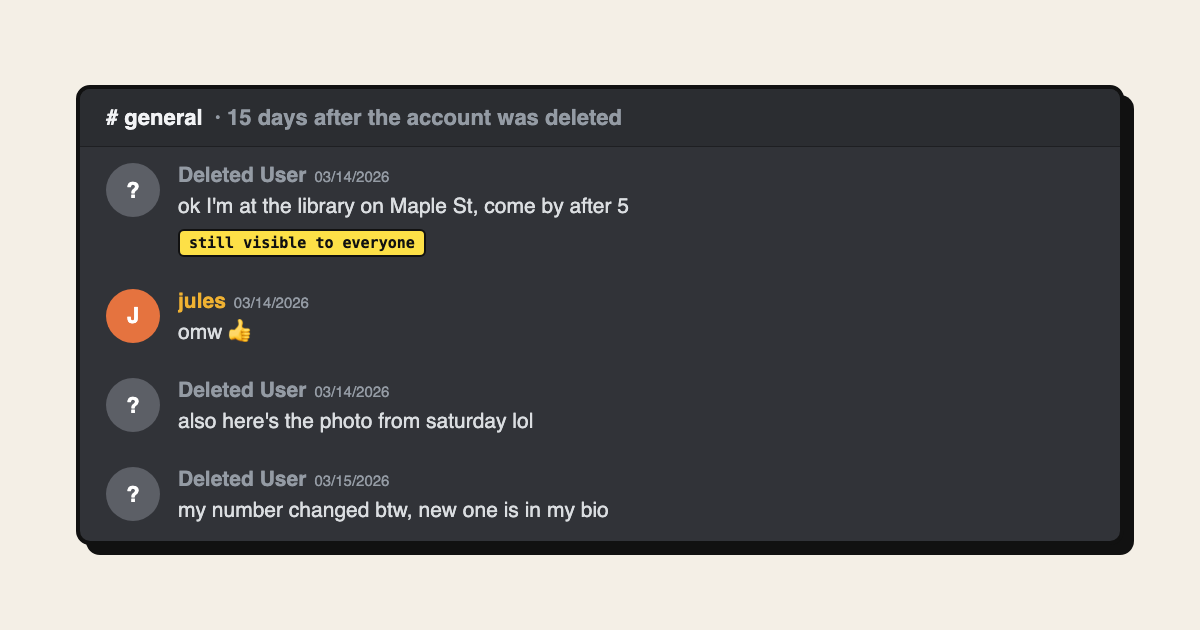
A lot of people assume that deleting the account cleans everything up. It doesn't. Discord's help page on deleting your account says the account is deleted after 15 days and that it "will be anonymized across all servers and messages". Your messages stay where they are, under the name "Deleted User".
So if the goal is to remove what you wrote, delete the messages first and the account afterwards. Once the account is gone, you can't sign in to delete anything. We cover this in more detail in does deleting your Discord account delete your messages.
Find where your old messages are
Before you delete, it helps to know which DMs and servers hold your messages, including ones you have since left. Discord can send you a copy of your data: open User Settings → Data & Privacy → Request Data. Discord's page on requesting a copy of your data says it can take up to 30 days, and the link goes to your account email. The package lists your messages by channel, which tells you where to look.
You can only delete messages in places you can still open. If you left a server, rejoin it first. If a server was deleted, its messages went with it.
Clear messages in a server with a bot (moderators only)
If you run a server or have the Manage Messages permission, a moderation bot can delete messages in bulk with a command. This is useful for a spammy channel, but it has hard limits set by Discord's API: bulk delete only removes messages younger than two weeks, up to 100 per request, and bots can't act inside your DMs at all. It doesn't help if your goal is years of your own messages across many servers.
Console scripts: fast, but they need your token
You will find scripts that you paste into the browser's developer console. Most of them ask for your account token. That token is the key to your whole account: anyone holding it can sign in as you, read your DMs and change your settings, with no password and no two-factor prompt. Discord shows a warning in the console for exactly this reason.
A script you trust can still be risky if you copied it from the wrong place, or if the token ends up in a screenshot or a pasted log. If you go this way, never share the token, and change your password afterwards, which resets it.
Delete all Discord messages with a browser extension
Discord Message Deleter is a Chrome extension we make for this job. It runs inside the discord.com tab you are already signed in to, so there is no token to copy and nothing to paste into the console.
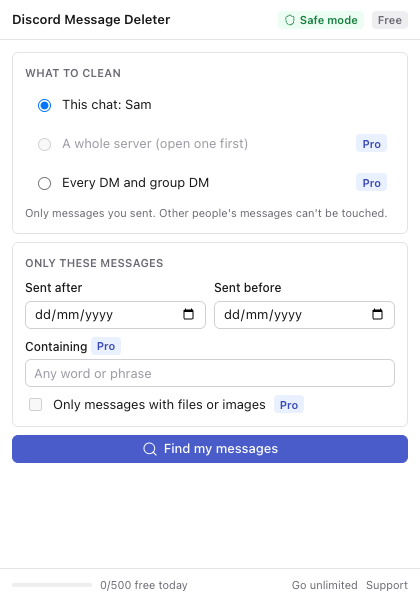
- Open the DM, channel or server on discord.com.
- Click the extension icon. Pick a date range if you only want part of your history.
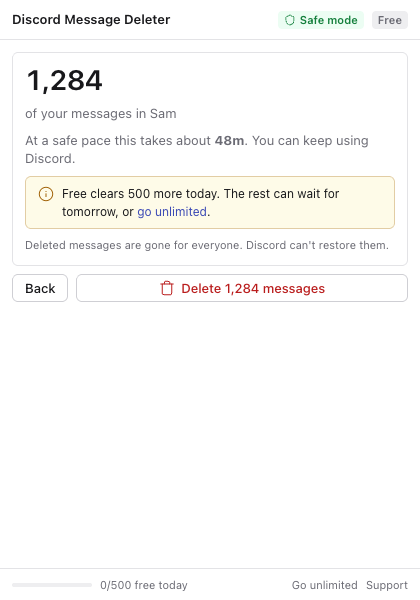
- Press Find my messages. It counts your messages and estimates how long deletion will take before anything is removed.
- Confirm, and it deletes them one at a time while you carry on using Discord. You can pause or stop at any point.
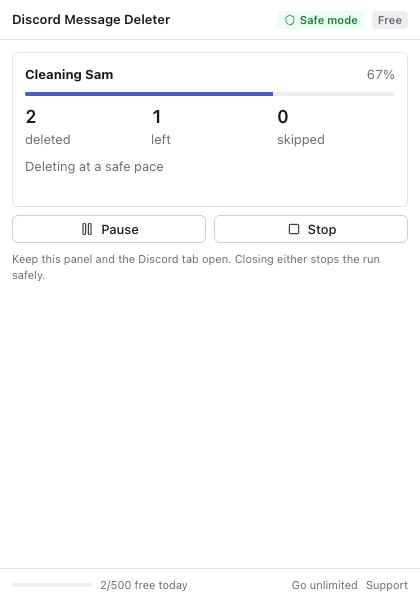
It checks that every message is yours before it deletes it, so other people's messages are never touched. The free version deletes 500 messages a day in one chat at a time. Pro removes the limit and can clear a whole server or every DM in one run, with keyword and files-only filters.
The account risk, honestly
Discord's rules forbid automating a normal user account. Its page on self-bots says doing so "can result in an account termination". In practice Discord most often reacts to accounts that send requests very fast, so speed is what to watch.
That's why Discord Message Deleter only has a slow mode. It sends one request at a time, waits one to two seconds between deletions, takes regular breaks on long runs, and backs off for as long as Discord asks whenever it says to slow down. That works out to roughly 1,500 messages an hour. Slow lowers the risk, but nothing can make it zero, so don't run any automated tool on an account you can't afford to lose.
Deleted Discord messages can't be recovered, by you or by Discord. If you might want a conversation later, export it before you delete it.
Which way to delete all Discord messages should you use?
- A handful of messages: delete them by hand. Shift-click makes it quick.
- A spammy channel in your own server, from the last two weeks: use a moderation bot.
- Hundreds or thousands of your own messages in a DM or across servers: use a tool. An extension that works in your open tab avoids handing over your token.
- Leaving Discord for good: delete your messages first, then the account.
If something doesn't work as described, our support page covers the common problems, and the privacy page explains what the extension does and doesn't send anywhere.