
Step-by-step guide · Updated October 2026
How to install a Chrome extension from a .zip file
Someone sent you a browser extension as a .zip file instead of a Chrome Web Store link? This guide shows you how to install it, one click at a time, with a short video for every step. You don't need any tech skills, and it takes about two minutes.
- About 2 minutes
- Windows and Mac
- Chrome, Edge, Brave, Opera
- Nothing else to install
Before you start, you need:
- The extension's .zip file, or the link to download it.
- A Windows PC or a Mac. Phones and tablets can't do this.
- Chrome, Edge, Brave or Opera. This guide shows Chrome, and the others work the same way.
Prefer to watch? Here's the whole thing
A two-minute walkthrough at a slow, easy pace. There's no sound, so you can watch it anywhere. Pause it whenever you like and copy along. Each step is also explained below with its own short clip.
Only step 2 (unzipping) is different on Windows and Mac. Everything inside the browser is the same.
Step 1 of 6 · 10 seconds
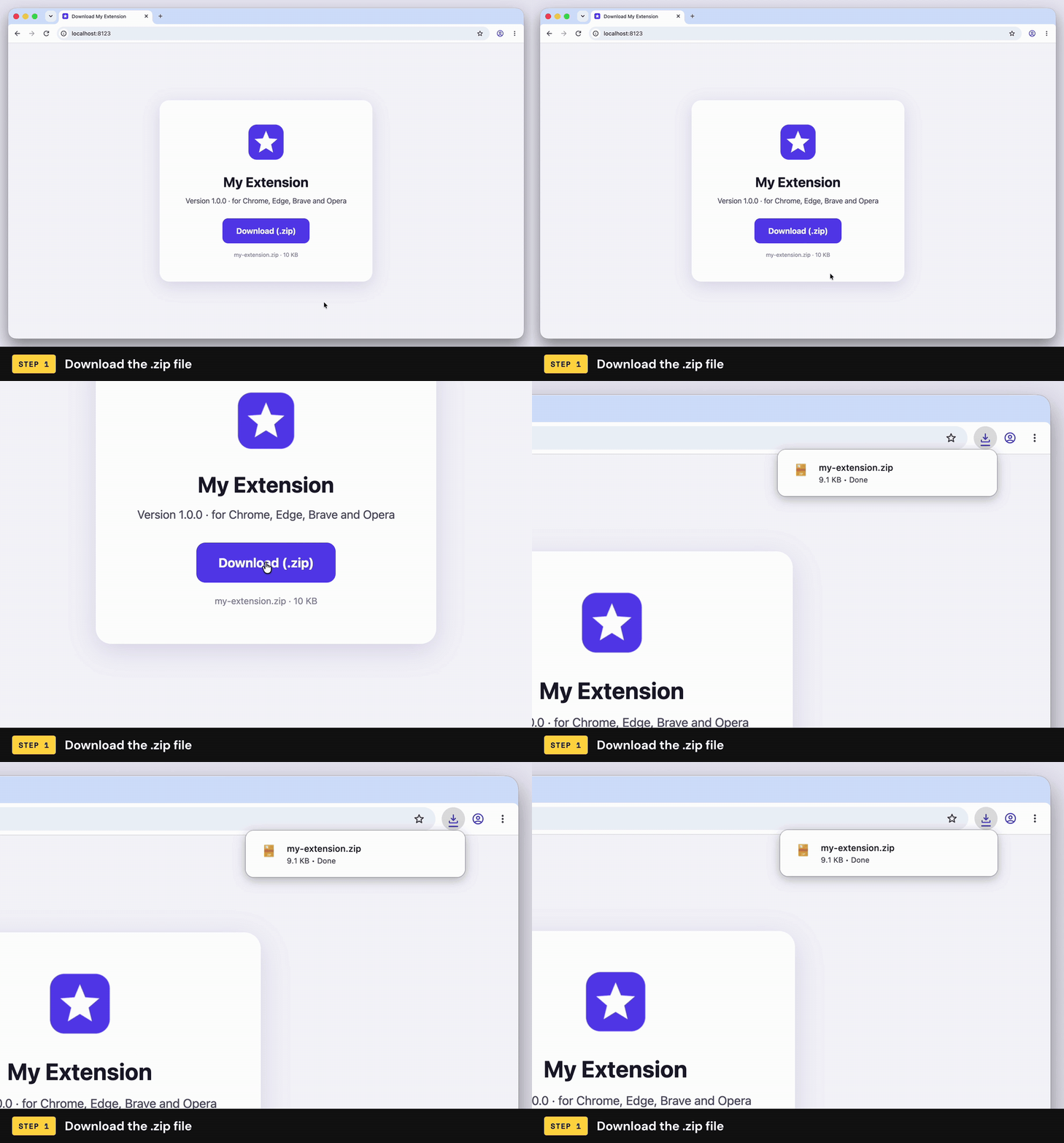
Download the .zip file
- Click the download link you were given.
- Your browser saves the file to your Downloads folder. A small box pops up in the top-right corner to show it's done.
What's a .zip file?
It's a box with the extension's files packed inside. You need to unpack it (that's step 2) before your browser can use it.
Step 2 of 6 · 20 seconds
Unzip it
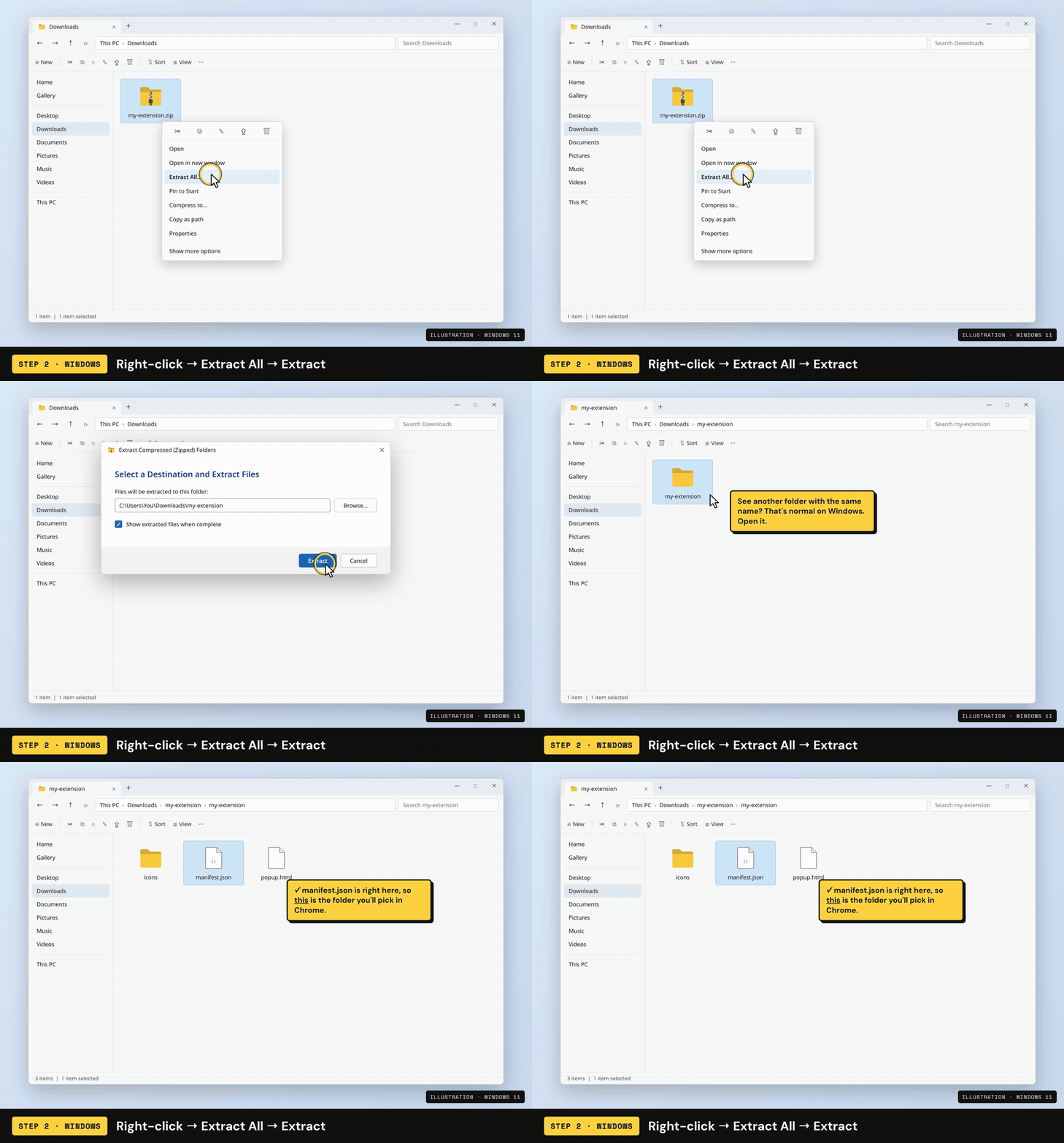
- Open your Downloads folder. Easiest way: in Chrome, click the download icon in the top-right, then the little folder icon next to the file.
- Right-click the .zip file and choose Extract All…
- A window opens. Leave everything as it is and click Extract.
- A new folder opens with the same name as the .zip. That folder is your extension.
Don't skip this, even though Windows lets you open the .zip
Double-clicking a .zip on Windows lets you peek inside without unpacking it. Chrome can't use a folder like that. You have to use Extract All.
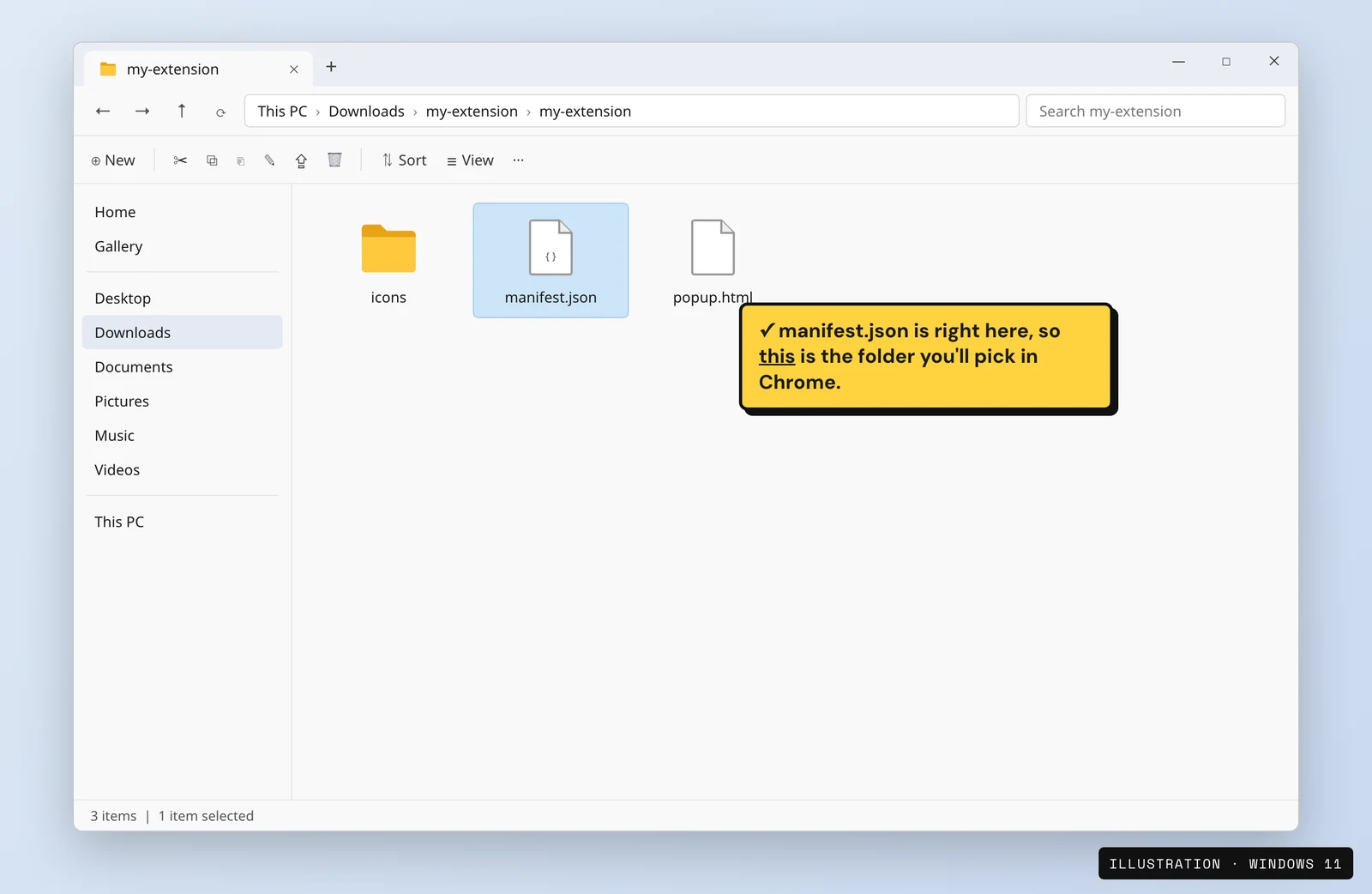
Two folders with the same name? That's normal
On Windows you often get my-extension inside my-extension. Keep opening folders until you see a file called manifest.json. The folder that holds it is the one you'll pick in step 5.
Put the folder somewhere safe, and don't delete it later
Your browser runs the extension straight from this folder. If you delete it or move it later, the extension stops working. Move it now to somewhere you won't tidy away, like your Documents folder, before step 5.
Step 3 of 6 · 10 seconds
Open the Extensions page
There are two ways. Pick whichever feels easier.
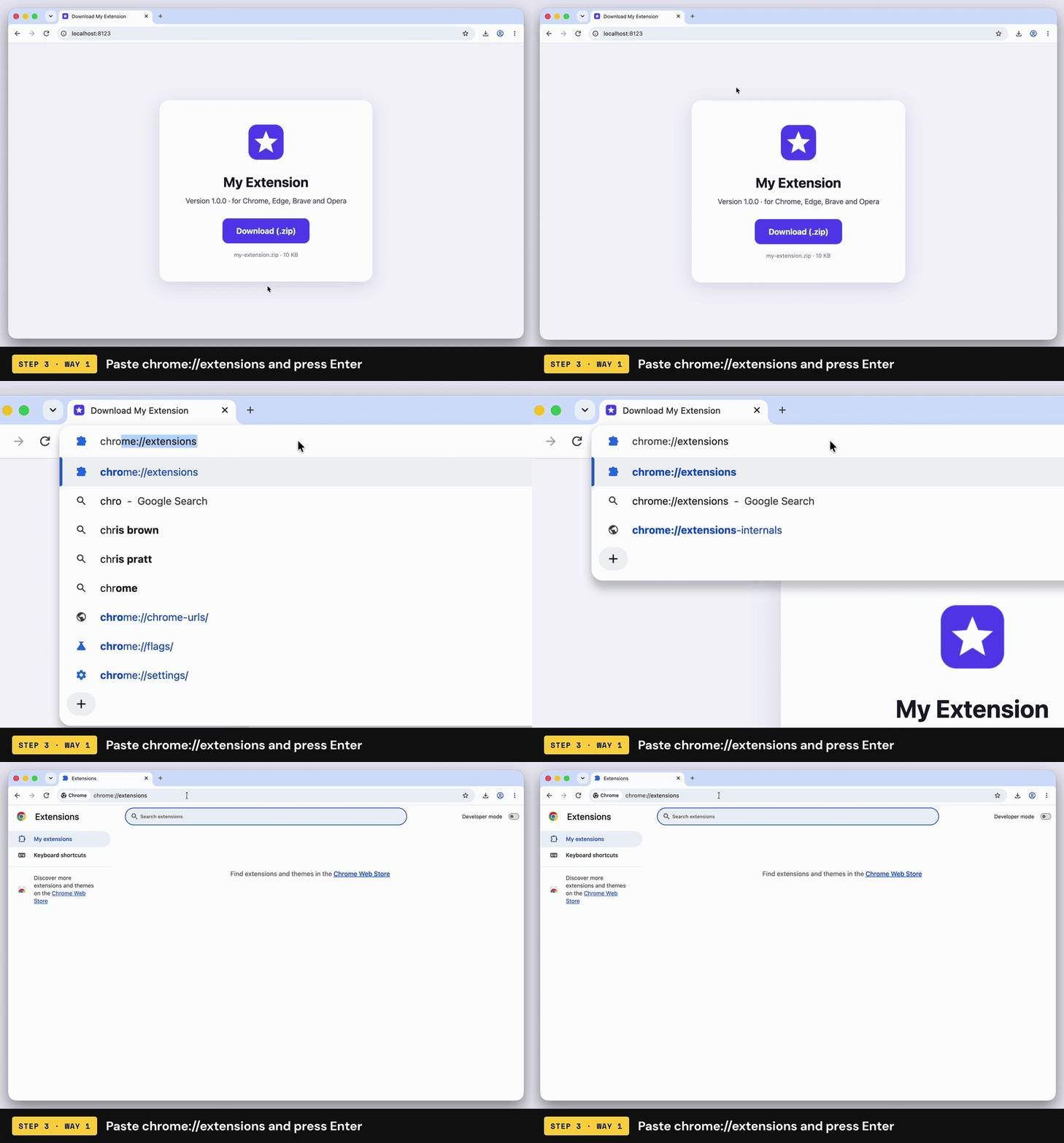
Way 1: copy and paste the address (quickest)
- Copy this address:
chrome://extensions - Click the address bar at the top of Chrome (where website addresses go).
- Paste it with Ctrl+V and press Enter.
Why can't I just click a link?
For your safety, browsers don't let websites link straight to their settings pages. That's why you have to paste the address yourself.
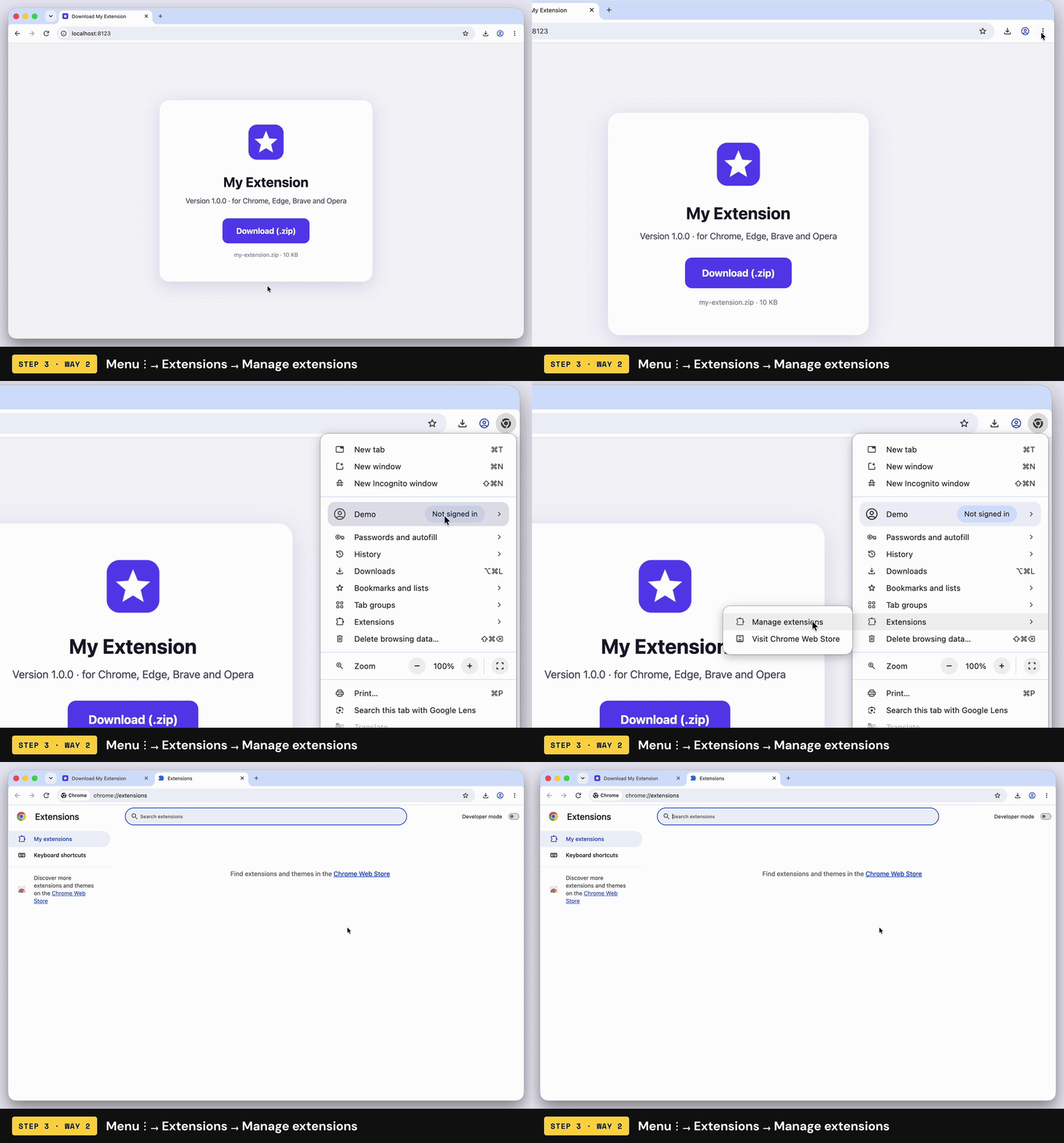
Way 2: use the menu
- Click the three dots ⋮ in the top-right corner of Chrome.
- Point at Extensions.
- Click Manage extensions.
Step 4 of 6 · 5 seconds
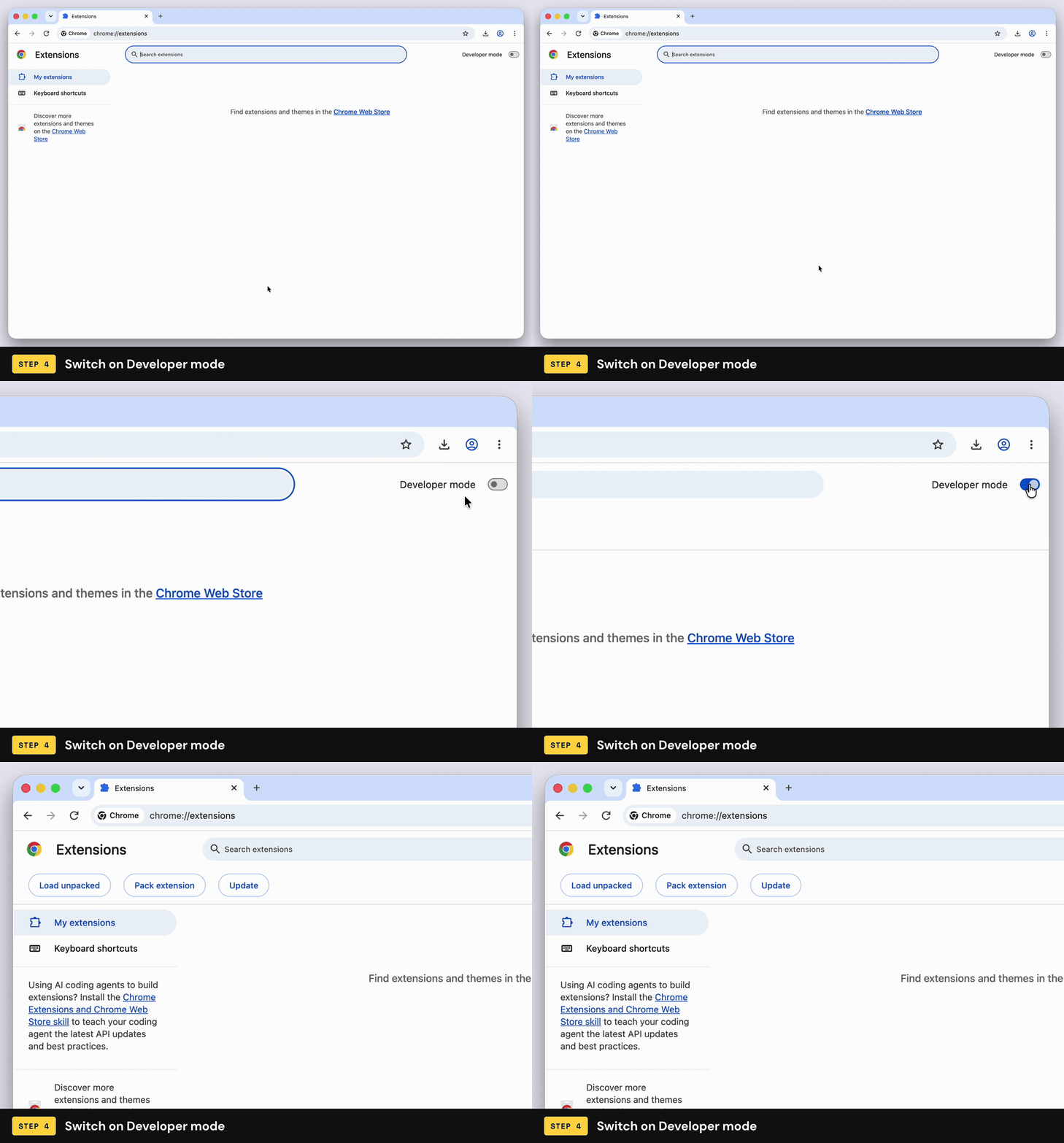
Turn on Developer mode
- Look at the top-right corner of the Extensions page.
- Click the Developer mode switch so it turns blue.
- Three new buttons appear on the left: Load unpacked, Pack extension and Update.
It sounds technical, but it's harmless
Developer mode just shows the buttons for installing an extension from a folder. It doesn't change anything else in your browser, and you can leave it on.
Step 5 of 6 · 20 seconds
Click Load unpacked and choose the folder
- Click Load unpacked (top-left).
- A window opens. Go to the folder you unzipped in step 2 and click on it once to select it. Don't open it.
- Click Select (Mac) or Select Folder (Windows).
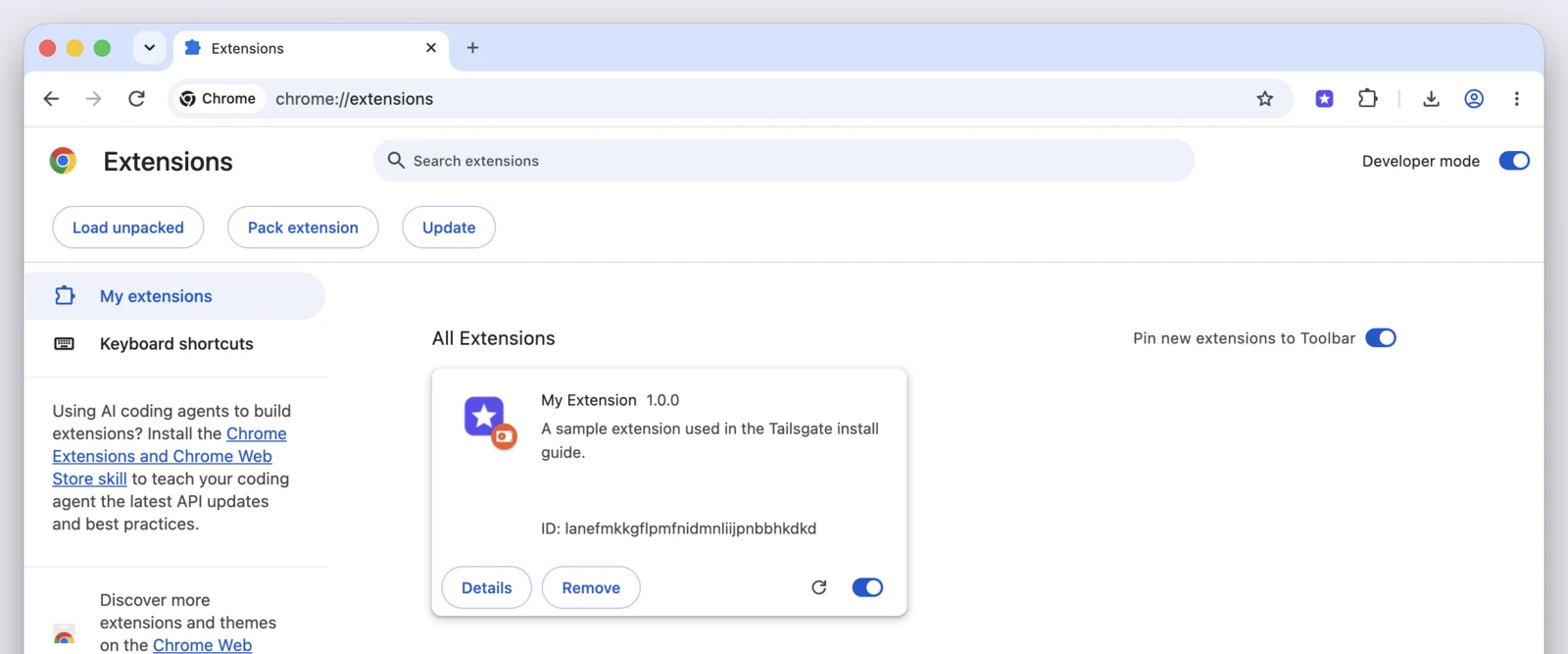
- The extension appears on the page as a card. It's installed.
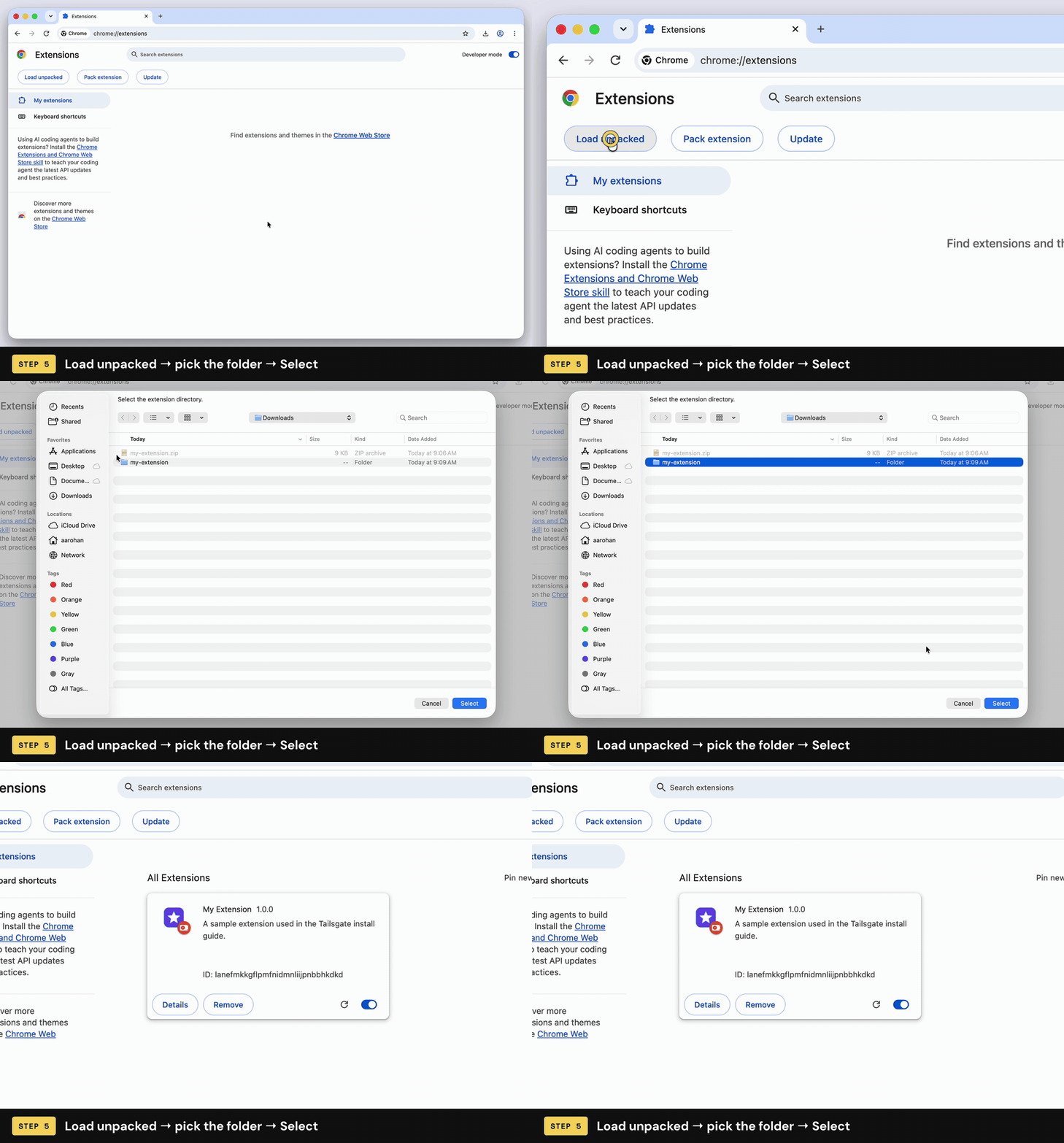
The .zip file looks greyed out in that window
That's expected. This window only lets you pick folders, which is why you unzipped it first. Pick the folder, not the .zip.
Got “Manifest file is missing or unreadable”?
You picked the wrong folder, usually the one around the right one. Click Cancel, then Load unpacked again, and pick the folder that has manifest.json directly inside it. More fixes are in the troubleshooting section.
Step 6 of 6 · 10 seconds
Pin it to your toolbar
Pinning puts the extension's button next to the address bar, so it's always one click away.
- Click the puzzle-piece icon in the top-right of Chrome.
- Find your extension in the list and click the pin next to it.
- Its icon now sits in the toolbar. Click it any time to use the extension.
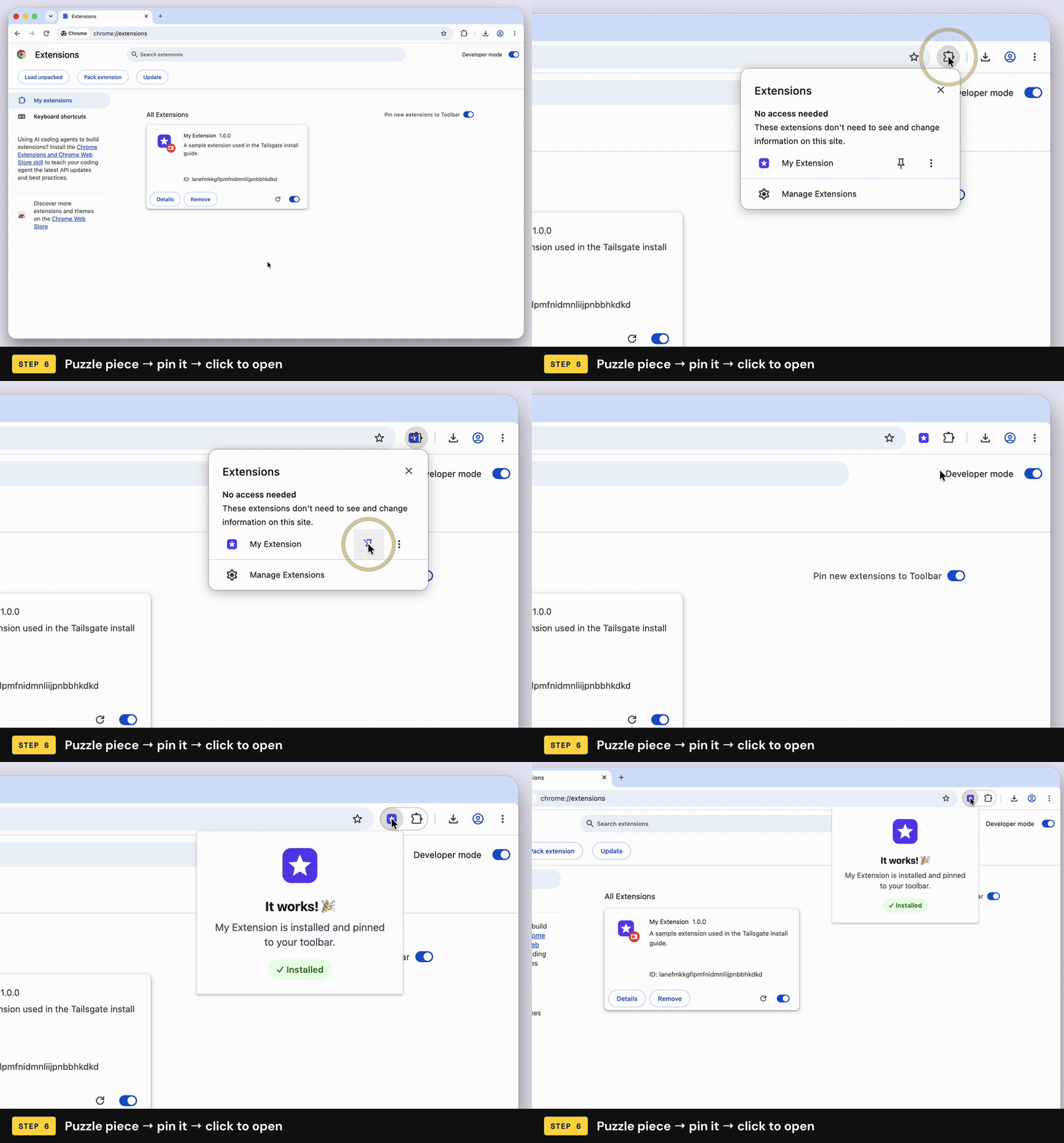
Already see the icon? You're done
Newer versions of Chrome pin new extensions for you (that's the Pin new extensions to Toolbar switch on the Extensions page). If the icon is already there, skip this step.
That's it
Your extension is installed 🎉
- Keep the folder. The extension runs from it. Deleting it removes the extension.
- It survives restarts. You only do this once.
- Got a new version? Replace the folder with the new one, then click the round reload arrow on the extension's card.
Using Edge, Brave or Opera instead?
They're all built on the same engine as Chrome, so the steps are the same. Only the address and where the buttons sit change a little. In step 3, paste your browser's address instead of chrome://extensions:
| Browser | Address to paste (step 3) | Developer mode switch | Load unpacked button | Pin it (step 6) |
|---|---|---|---|---|
| Google Chrome | chrome://extensions | Top-right corner | Top-left, under the title | Puzzle piece → pin icon |
| Microsoft Edge | edge://extensions | In the menu down the left side. In a narrow window, click ☰ first | Top of the page | Puzzle piece → eye icon (Show in toolbar) |
| Brave | brave://extensions | Top-right corner | Top-left, under the title | Puzzle piece → pin icon |
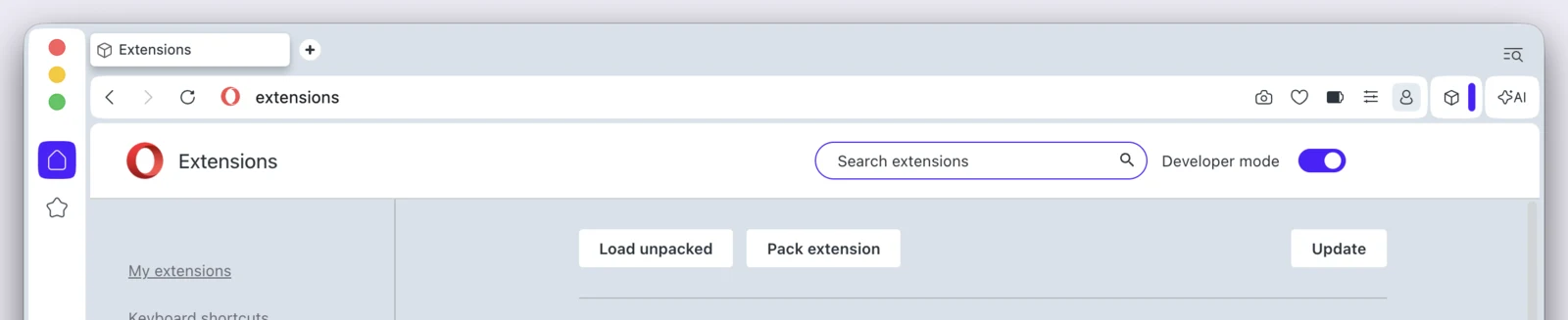
| Opera | opera://extensions | Top of the page, next to the search box | Middle of the page, above your extensions | Cube icon (top-right) → pin icon |
Brave
Same layout as Chrome: Developer mode top-right, Load unpacked top-left.

Opera
Developer mode sits next to the search box, and Load unpacked appears in the middle of the page.
Microsoft Edge
Paste edge://extensions. The Developer mode switch is in the menu down the left side of the page (in a narrow window, click the ☰ button first). Once it's on, Load unpacked appears at the top. To show the icon, click the puzzle piece and then the eye icon (Edge calls it “Show in toolbar” instead of pinning).
These won't work
Firefox and Safari can't install Chrome extensions. Phones and tablets (iPhone, iPad, Android) can't load extensions this way either. You need Chrome, Edge, Brave or Opera on a computer.
Something went wrong?
The most common message is this one. It means the folder you picked isn't the one with the extension's files directly inside.
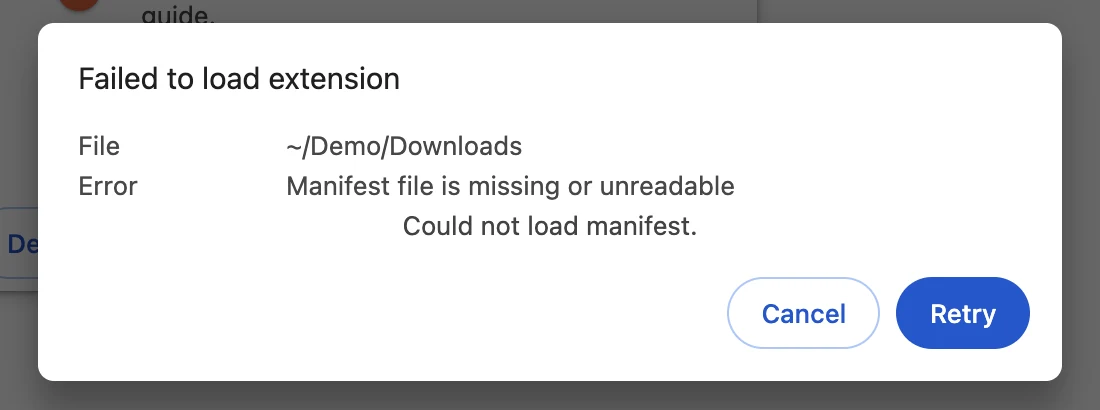
To fix it: click Cancel, click Load unpacked again, open the folder you picked before, and if there's another folder inside it, pick that one. You're looking for the folder where you can see manifest.json.
Frequently asked questions
Still stuck?
Reply to whoever sent you the extension and tell them which step you're on and what you see on screen. A screenshot helps a lot. If it came from us, contact Tailsgate.